Sheet automations
When someone joins a sheet, leaves it, or has been on it a while, Sanctuary can email or text them, tell someone, make a task, or change their profile.
4 min read · 4 steps
What an automation does
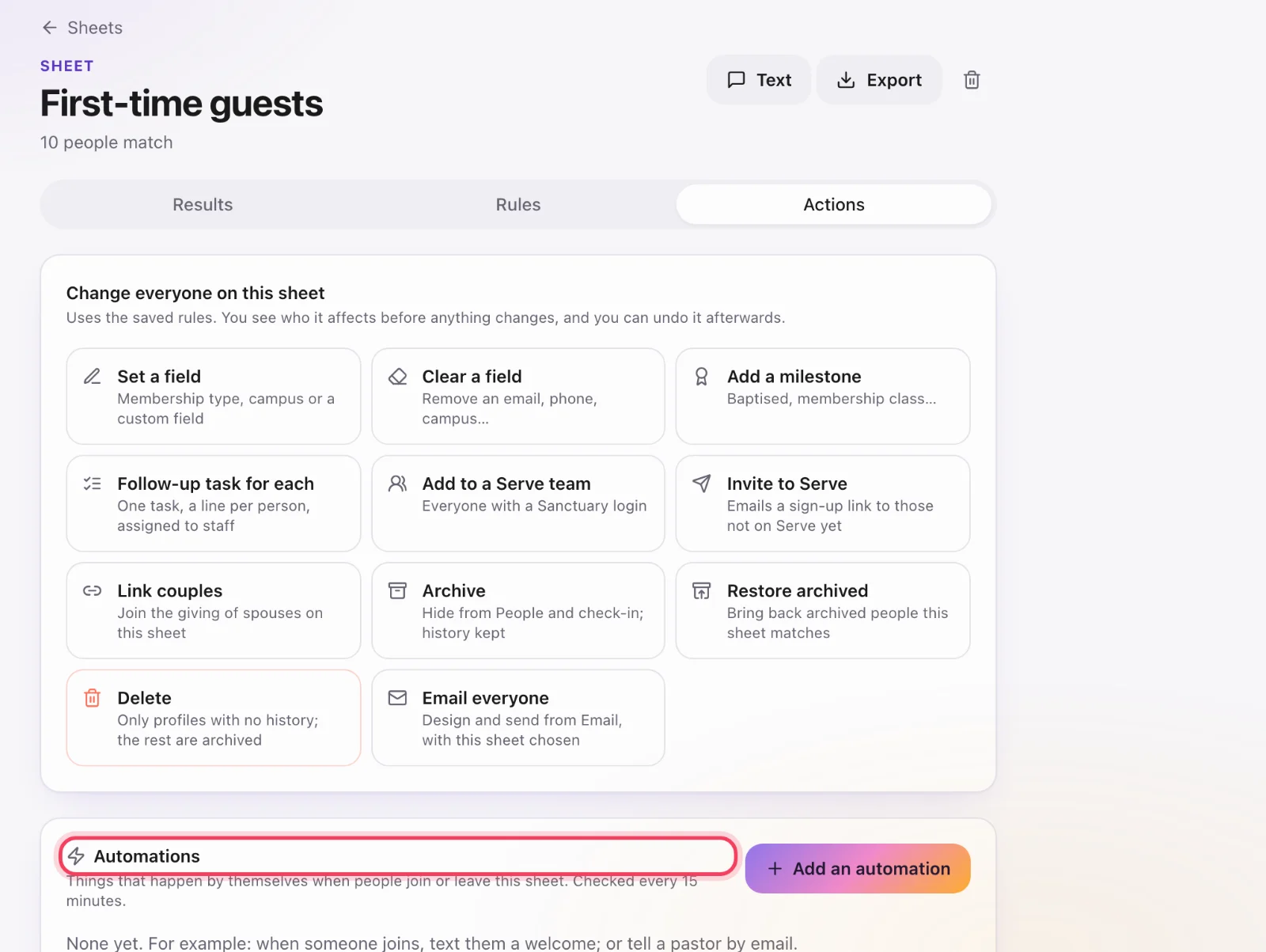
Open a sheet, then go to Actions → Automations. Each automation has a moment and an action. The moment is When someone joins this sheet, When someone leaves this sheet, or When someone has been on it for so many days, weeks, months or years.
Choose an action
Email them (your words, with an unsubscribe link), Text them (only people who agreed to texts), Tell someone (email an address or notify staff), Make a task (a follow-up for each person), Set a field (membership type, campus or a custom field), Add a milestone (dated the day it happens), or Add to a Serve team (people with a login).
Who it acts on
When you turn it on, everyone already on the sheet is left alone. Only people who join after that are acted on, and each person only once. If more than 50 people would be acted on at once, which usually means an import or a rules change, nothing happens until someone chooses to go ahead or skip them. Texts wait until between 8am and 9pm where your church is.
How often it runs
Sanctuary checks every 15 minutes. Changes it makes to profiles show up in the sheet’s Recent changes, where you can undo them like any bulk change. It runs as the person who set it up, and it pauses if they lose the access it needs. It never archives, deletes or touches money.