Editing a person’s profile
Correct a name or contact details, change their membership type, switch person and business, or delete a profile.
4 min read · 7 steps
Open the person
Core → People, search, tap the name. Everything about them — household, forms, registrations, tasks, milestones, giving summary if you have Give — is on this profile.
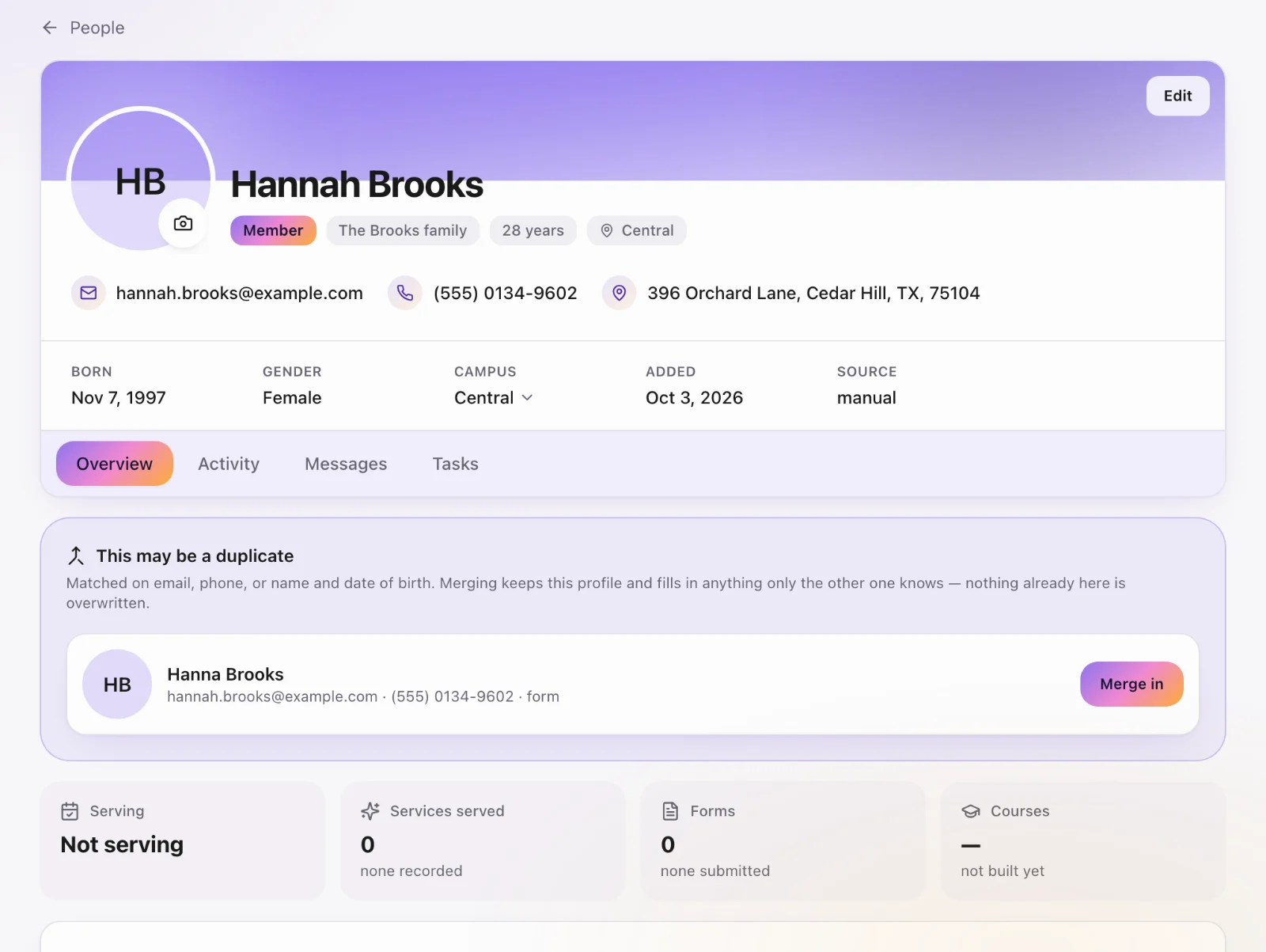
What editors can change
Choose Edit on the profile banner. Title, first, middle and last name, suffix, what they go by, date of birth, anniversary, gender, adult or child, email, phone, campus, address, notes and photo. Save. The name also updates on their Serve membership and login if they have one. Custom fields and milestones are further down the profile itself.
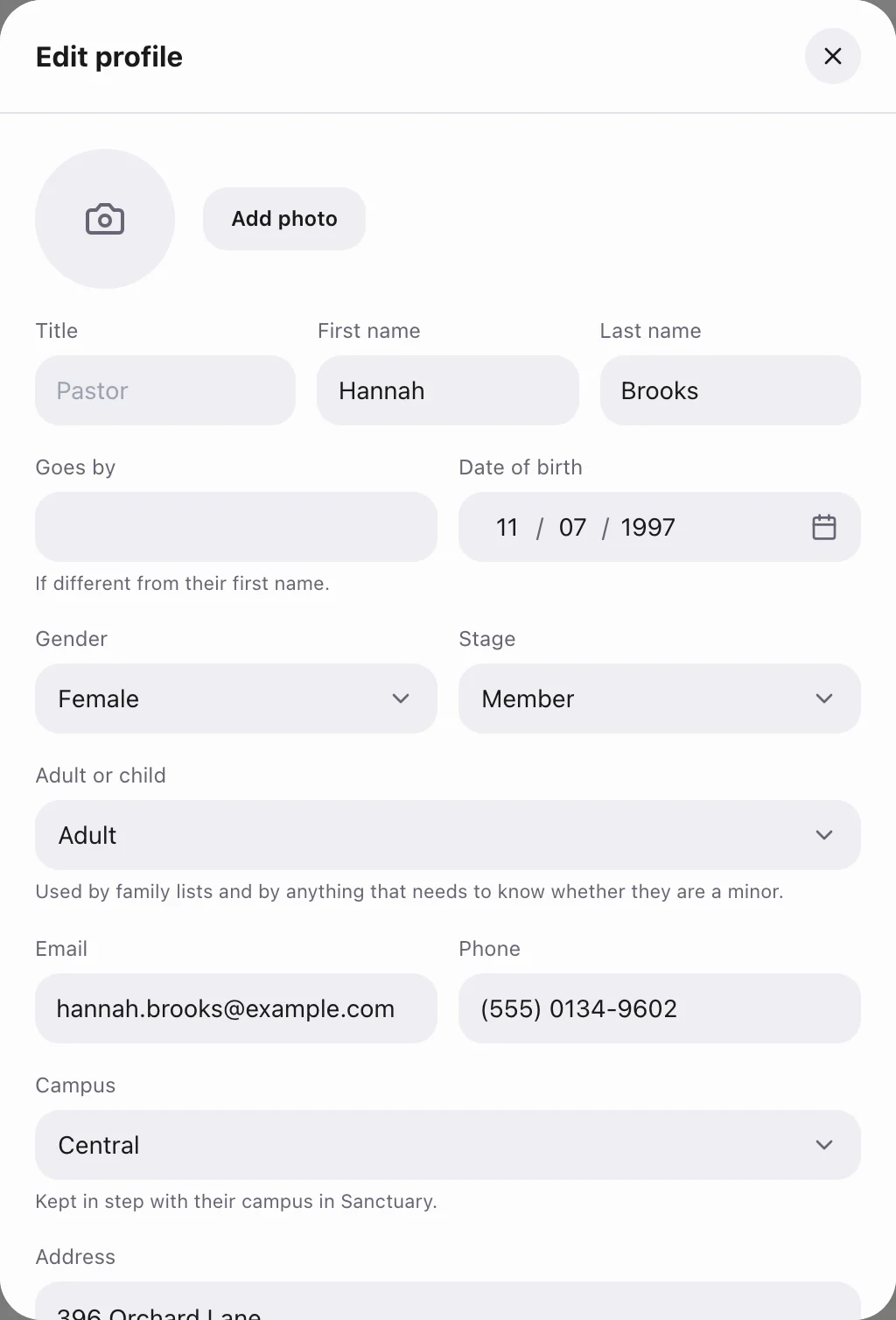
Membership type
Membership type sits at the top right of the profile banner (under the name on a phone), reading something like Membership · Regular Attender. Tap it to choose another type or Not set. The list is your church’s own — see Membership types.
Campus
A person’s home campus is the one they belong to. Serve assignments can span campuses; this field is “where they usually are.”
Person or business
At the foot of the profile, Change to a business… (or Change to a person…) switches the kind of profile. Sanctuary shows what will change first: a business leaves its family and loses its family ties, and personal details like birthday and membership type are hidden but kept, so changing back restores them. A profile with a login cannot become a business.
Deleting a profile
Core admins see Delete profile… at the foot of the profile. After you confirm, the person no longer appears in People, search or check-in, and you go back to People with an Undo on the message. Their giving, attendance and check-in history is kept. Opening a deleted profile later shows Restore.
Do not repoint the login
The account attached to a profile is set when they join or are invited. Do not try to attach a login to someone else’s profile — that would hand them that person’s history. If two records are the same human, merge them.