Adding a person
Create a profile by hand, or let a form, registration or Serve login do it.
4 min read · 6 steps
Add from People
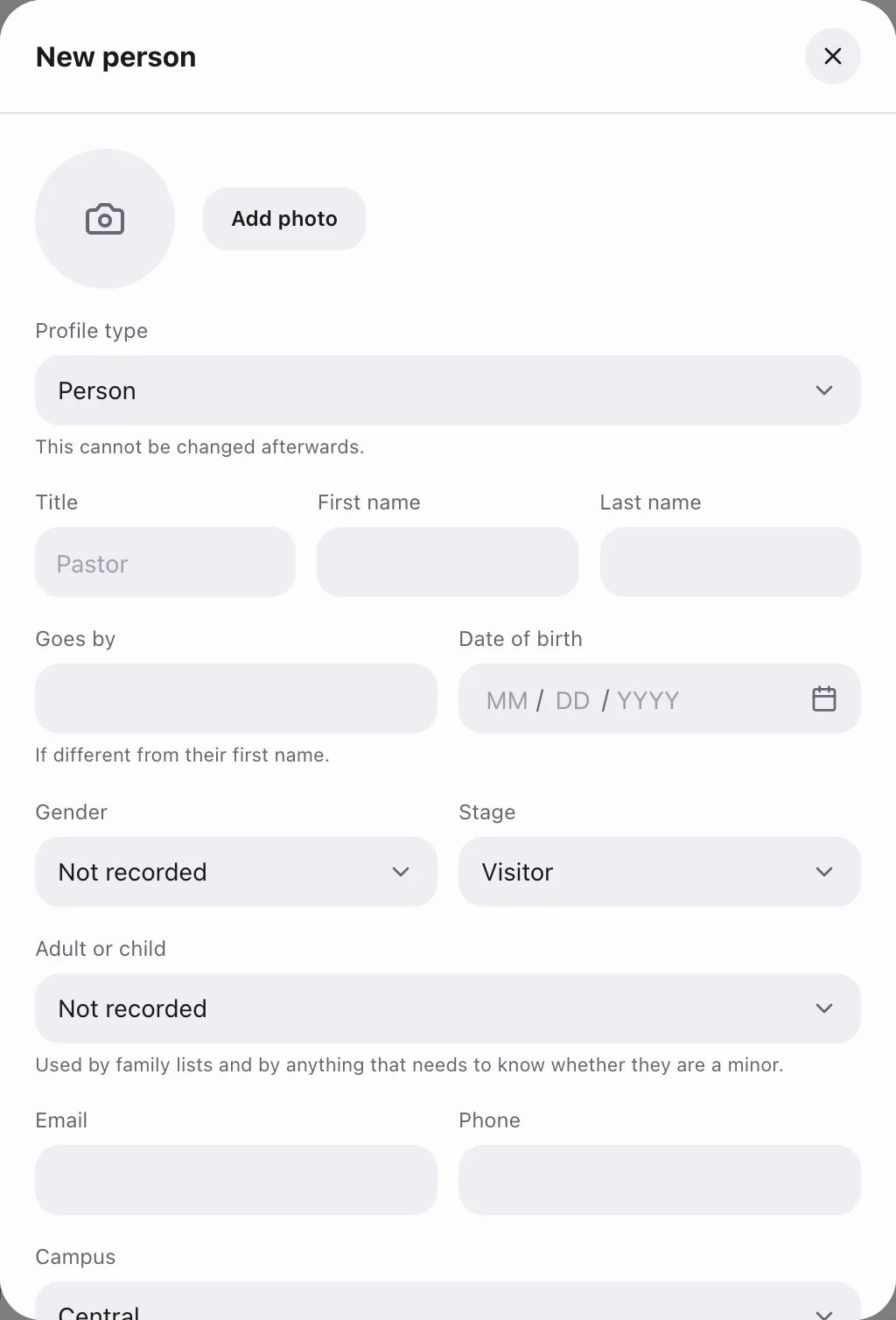
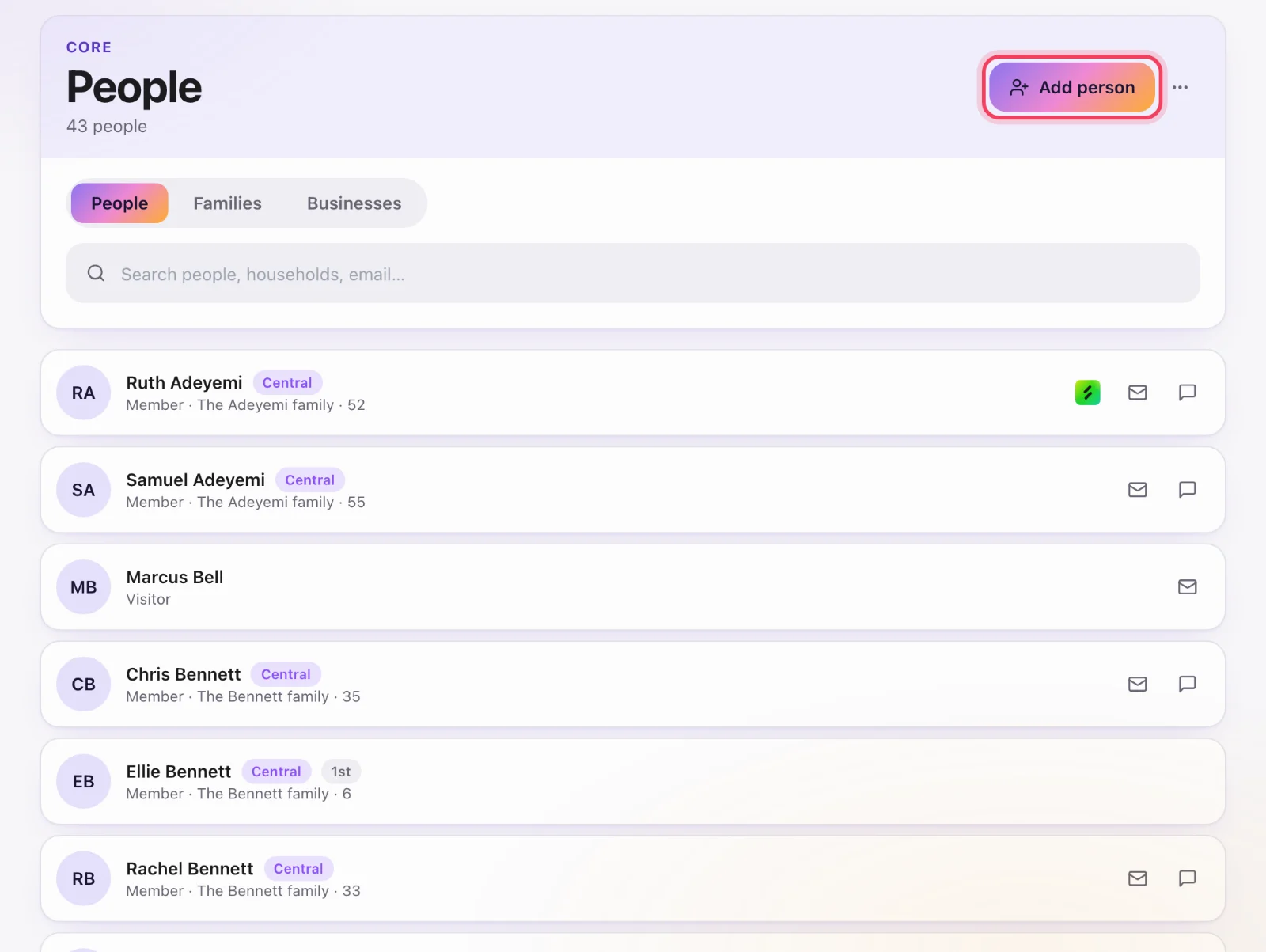
Open Core → People. Editors and admins see Add person. Enter at least a last name (the directory sorts on it). First name, email, phone, date of birth, campus, membership type and household are optional but worth filling in.
Many people at once
Choose the … beside Add person, then Add many people. Paste a list straight from a spreadsheet — name, email and phone in any order, one person per line. You can give them all one membership type and campus, and put everyone on a sheet as you go.
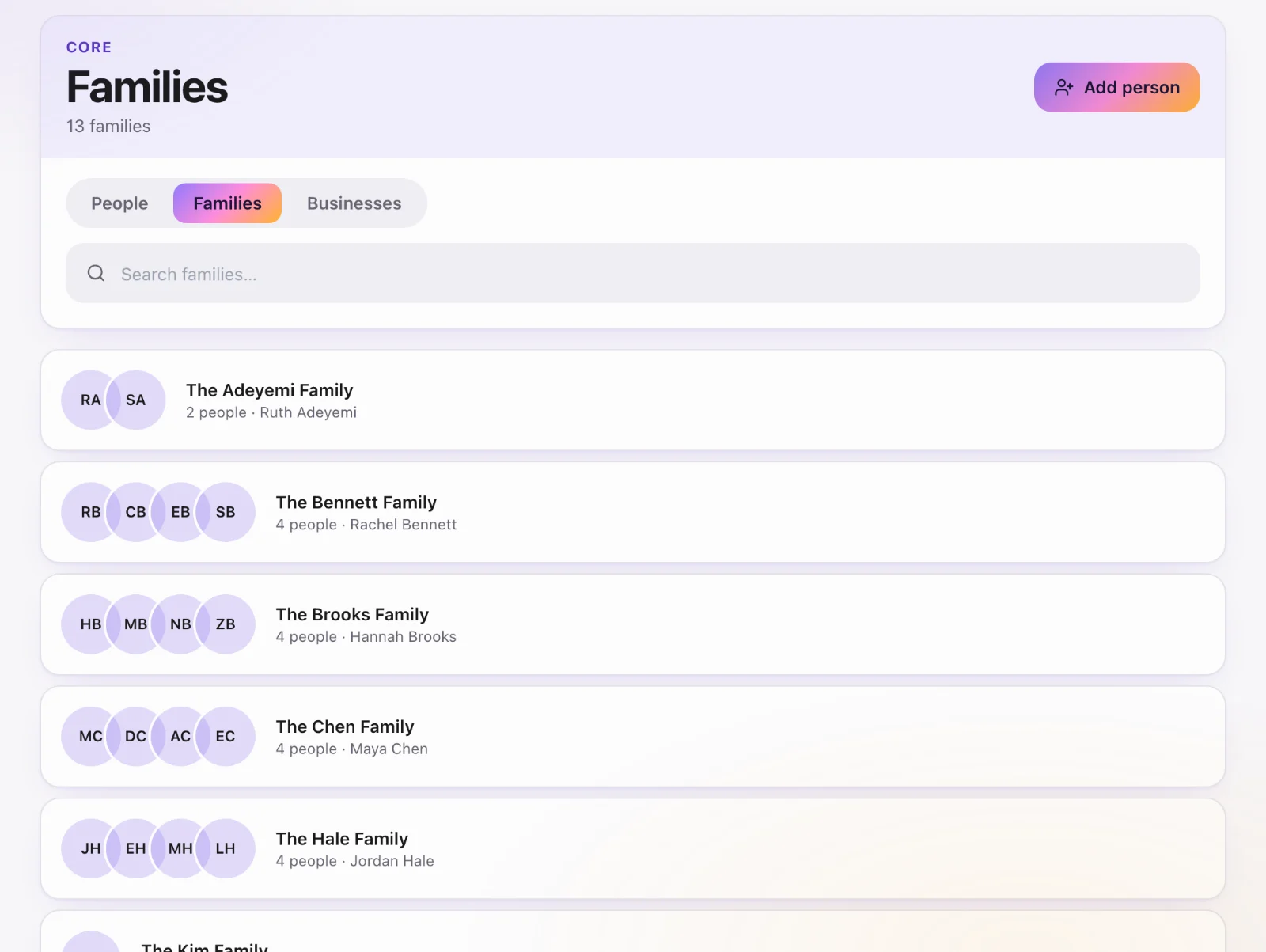
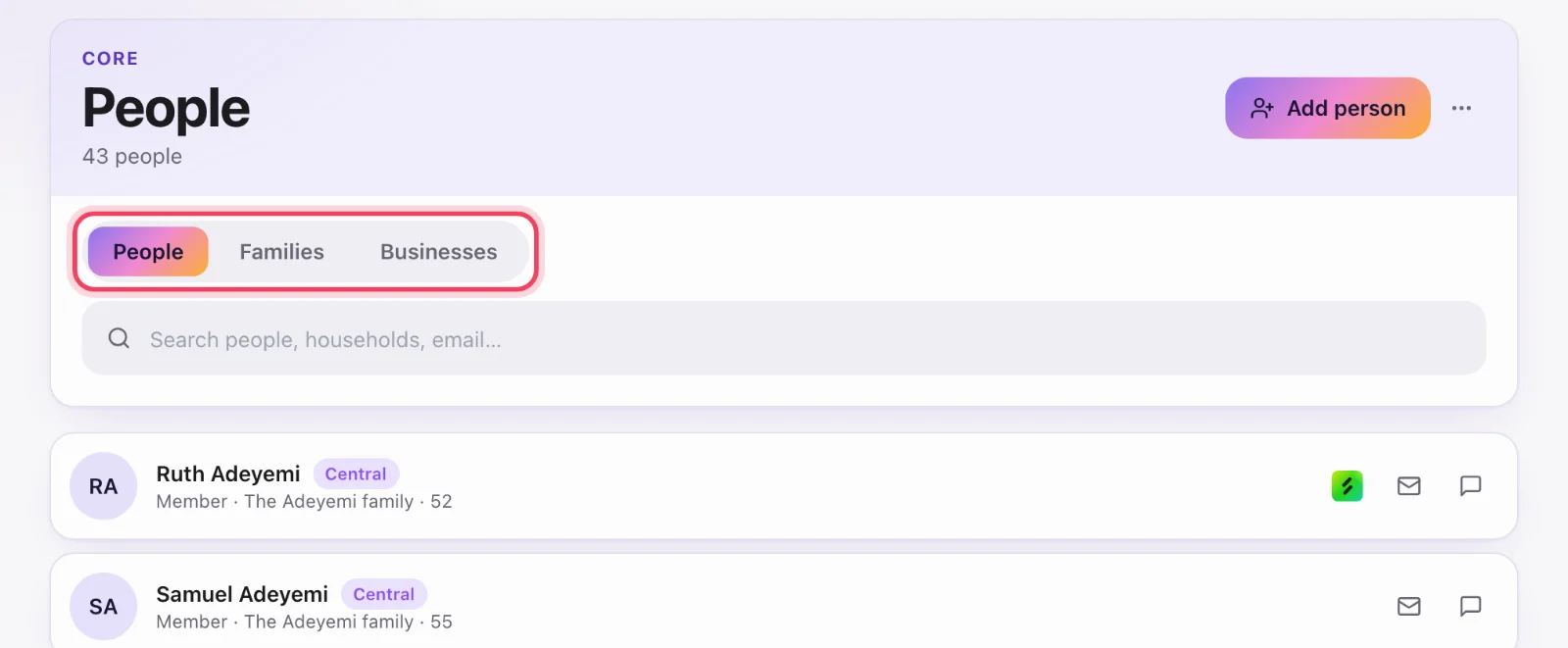
People, Families, Businesses
The People book is individuals. Families groups them by household. Businesses is organisations (a vendor, a school) — from that tab the button reads Add business, and the form does not ask for a date of birth. Picked the wrong one? Change to a business… (or Change to a person…) at the foot of the profile switches it.
Do not create a second Sarah
Search first. If Sarah Bell is already there, open her profile and edit. Two profiles for one human split giving history, households and follow-up. If you do create a duplicate, use Merge (Core admins) — see Merging duplicate people.
Other doors that create a profile
A public form submission, an event registration, a first gift, a Serve invitation and a church-code join all create or attach a Core profile automatically. You usually should not also add that person by hand.
Children
Add the child as their own person, then put them in the household with a child role. Do not put a child's record on the parent’s profile as a note.