Building a form
Create a form, add questions, keep it closed until it is ready, then open it.
5 min read · 5 steps
Create the form
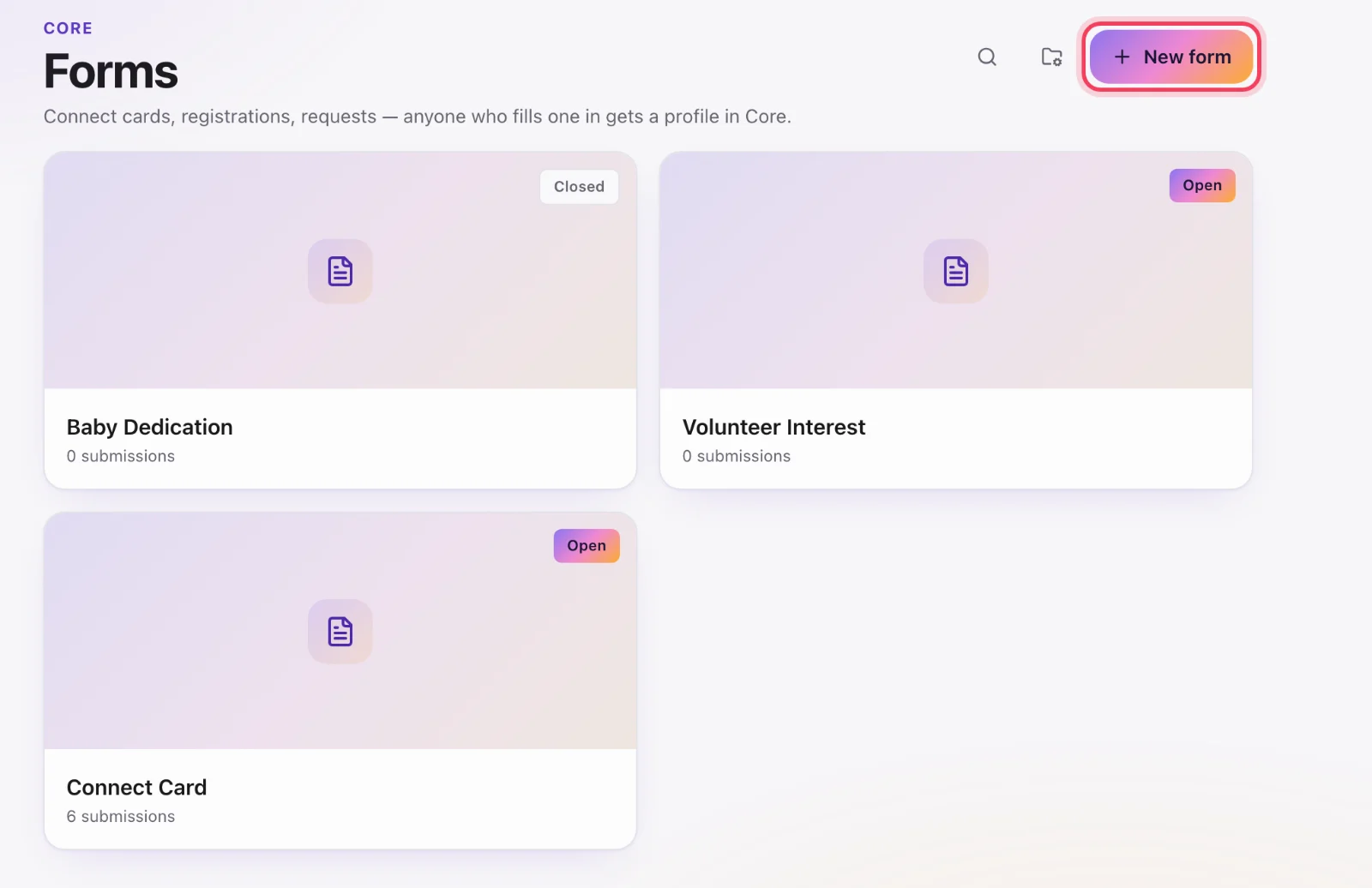
Core → Forms → new form. Give it a name. New forms start closed so nobody can submit while you are still building. The public address is a random slug, not the name — people cannot guess your other forms.
Add questions
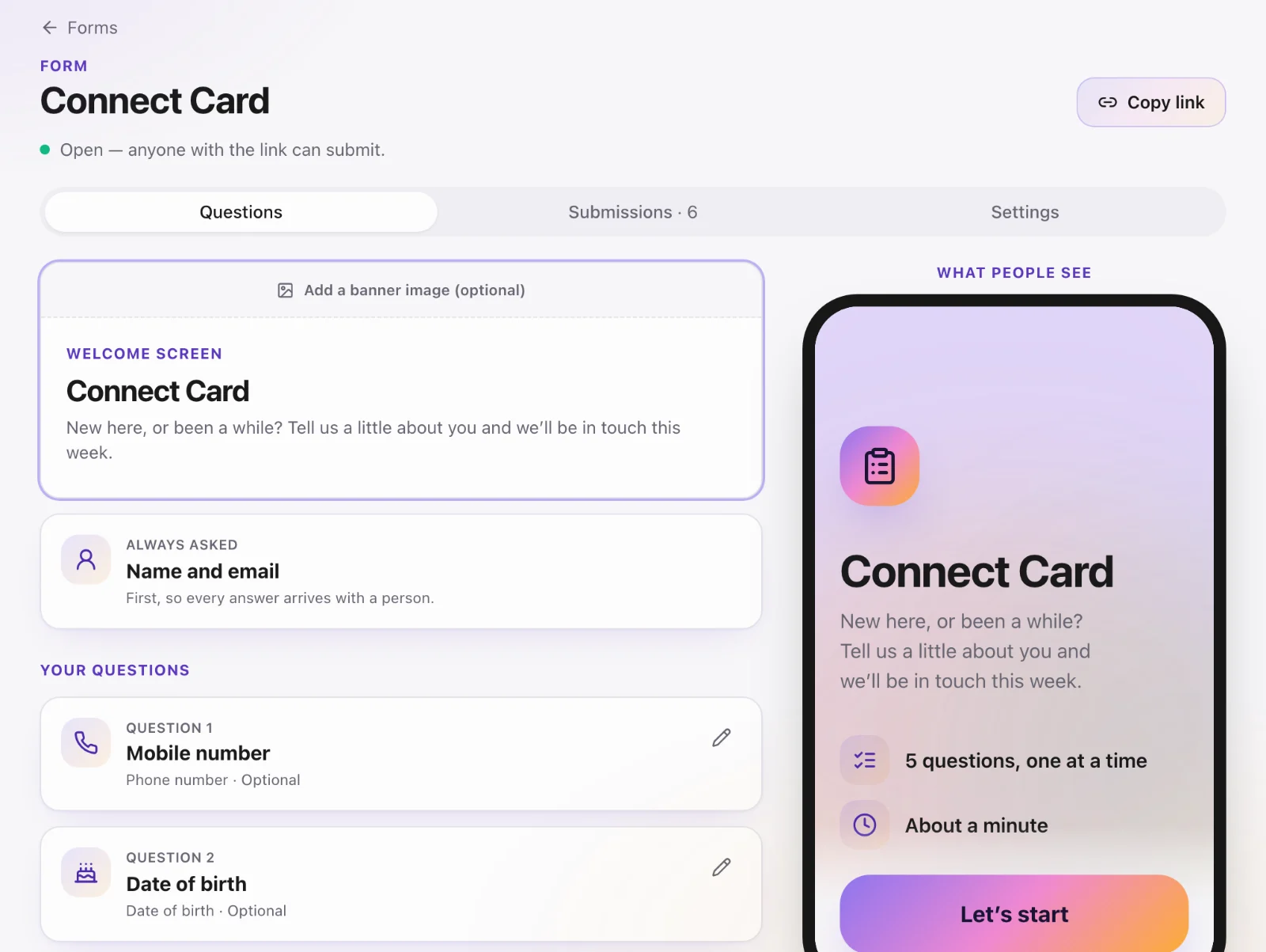
Open the form and add fields. Include first name, last name and email if you want submissions to create or update a Core profile. Map extra questions to custom fields when you have them.
Notifications and campus
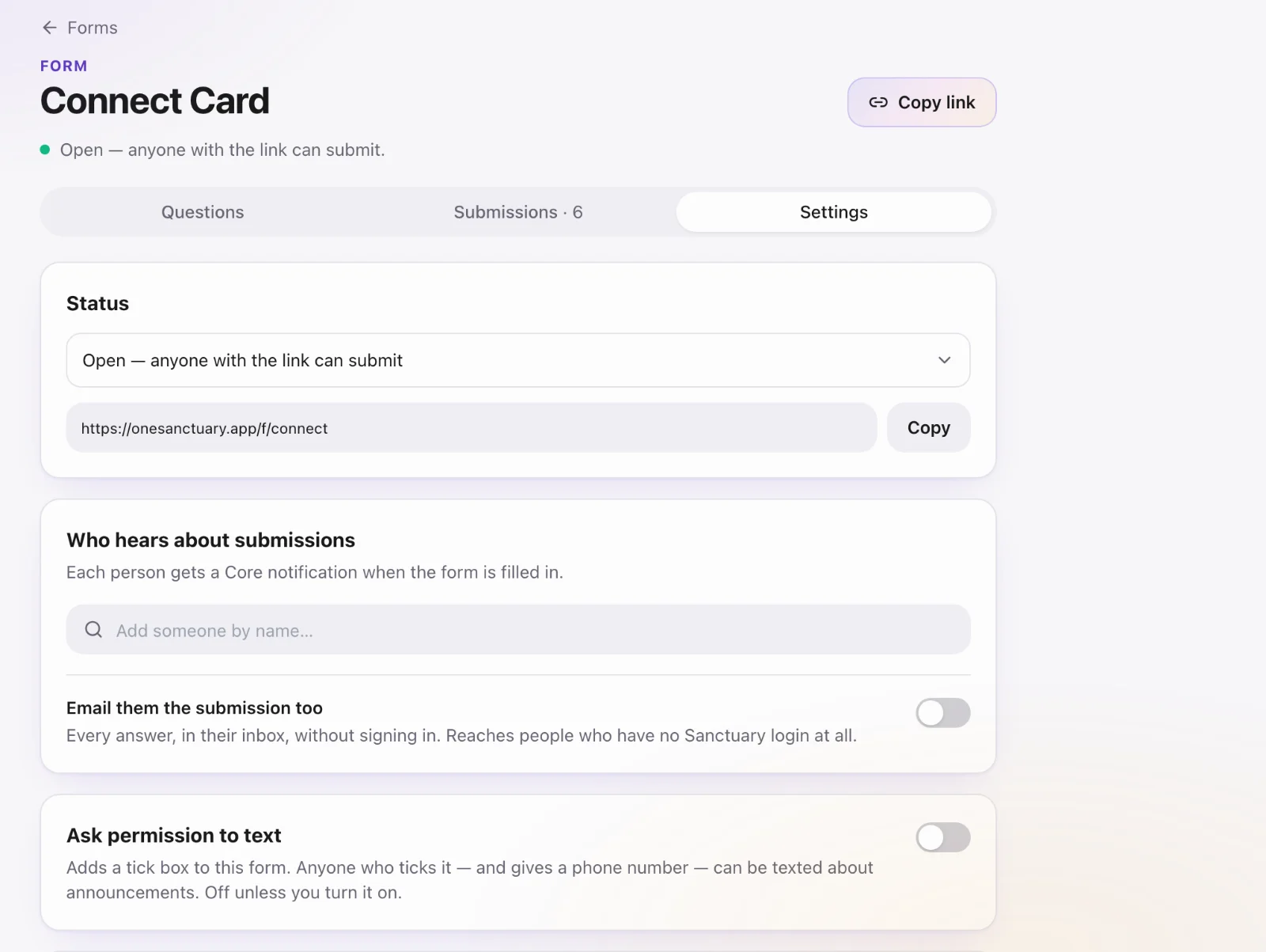
In form settings you can notify specific staff and, if you want, set a campus or a membership type for new profiles (for example new guests become Visitor).
Open it
Switch the form to Open. Copy the public link (/f/your-slug) onto your website or into a QR code. Close it when the event is over; archive it when you no longer need the list.
What a submission does
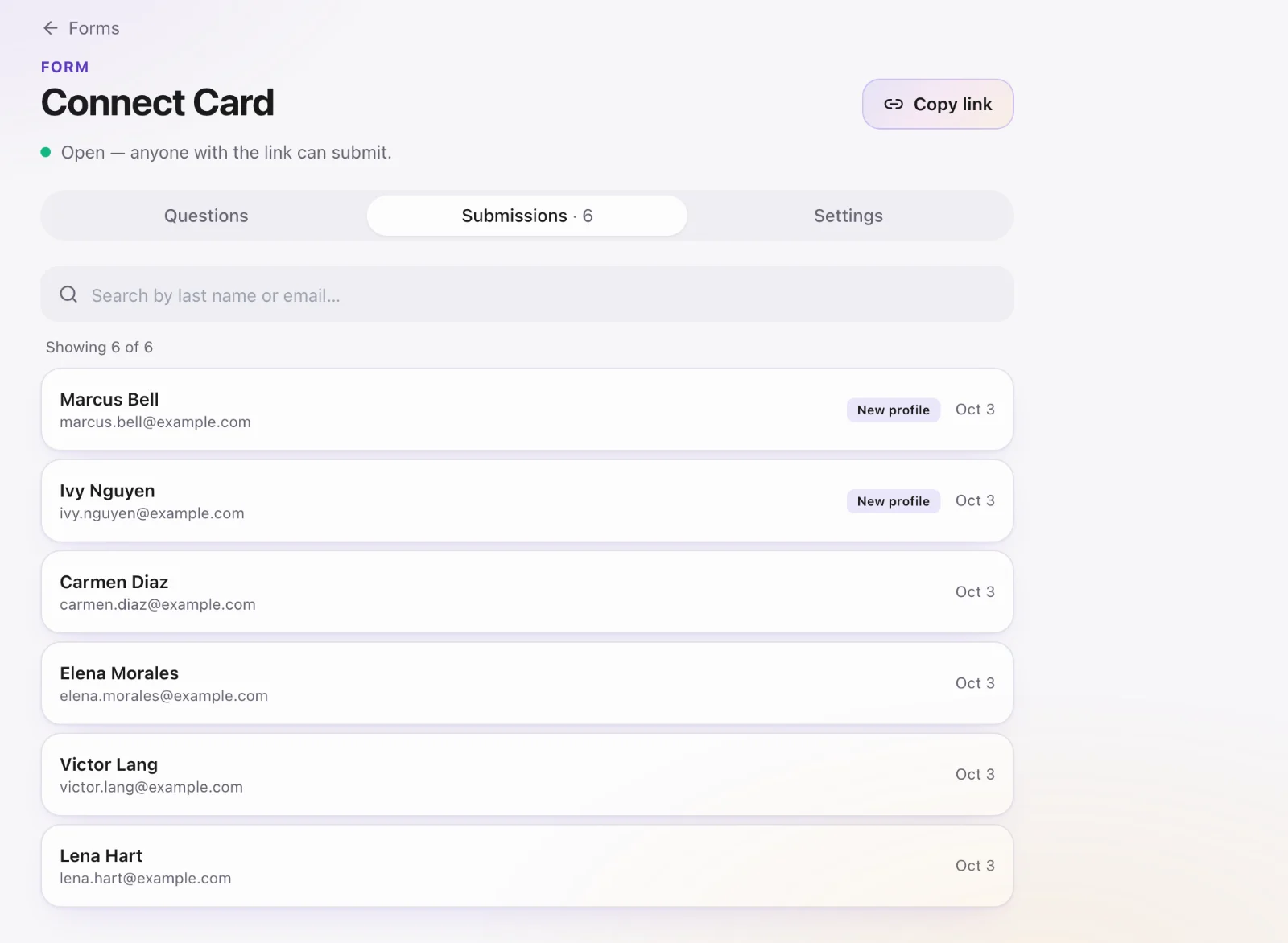
If the email matches someone you already have, their profile updates. If it does not, Core creates a person. Possible duplicates are flagged for an admin — they are not auto-merged.