Create your account
Make a personal Sanctuary login with email, Google, or Apple.
3 min read · 6 steps
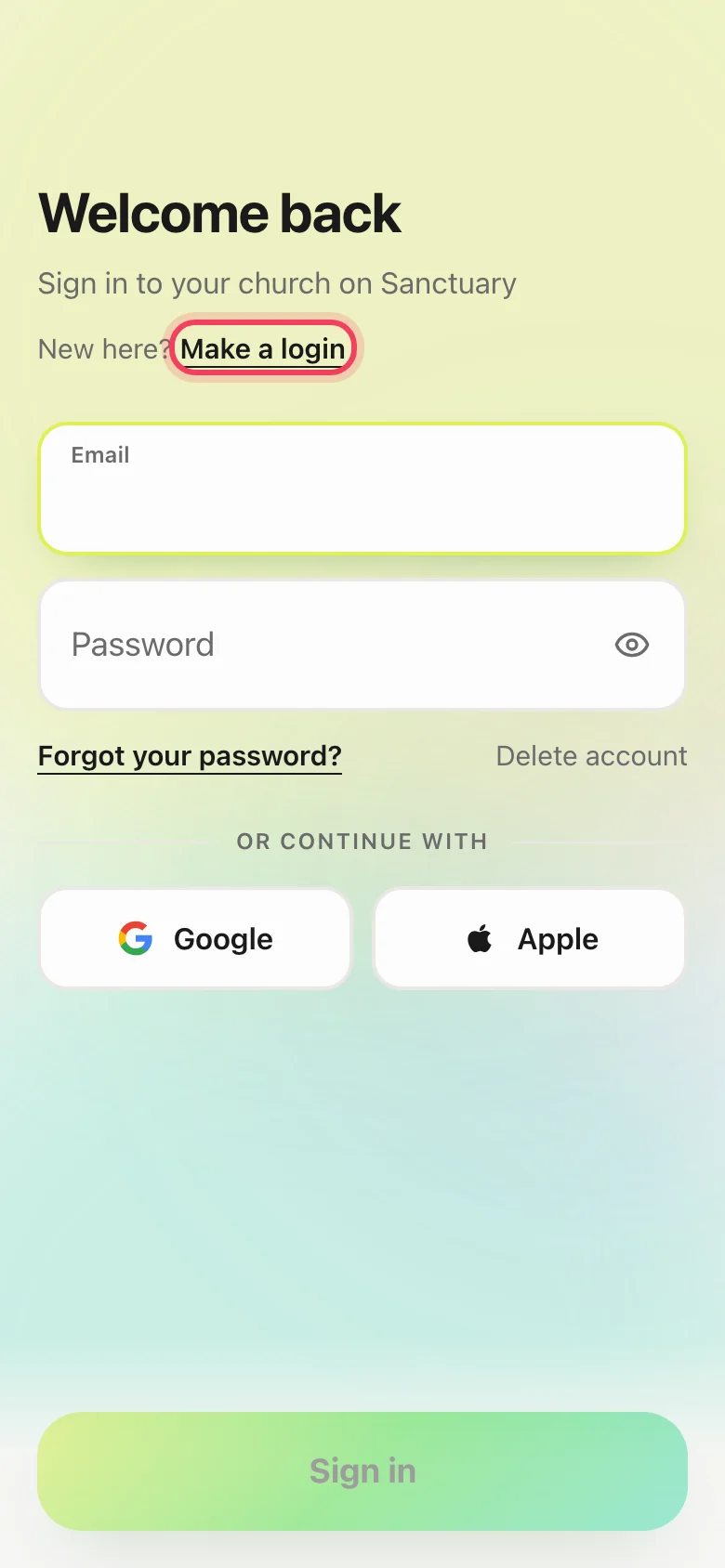
Open Create account
Go to onesanctuary.app/register, or tap Make a login on the sign-in screen in the app. This creates a personal login — it does not create a church.
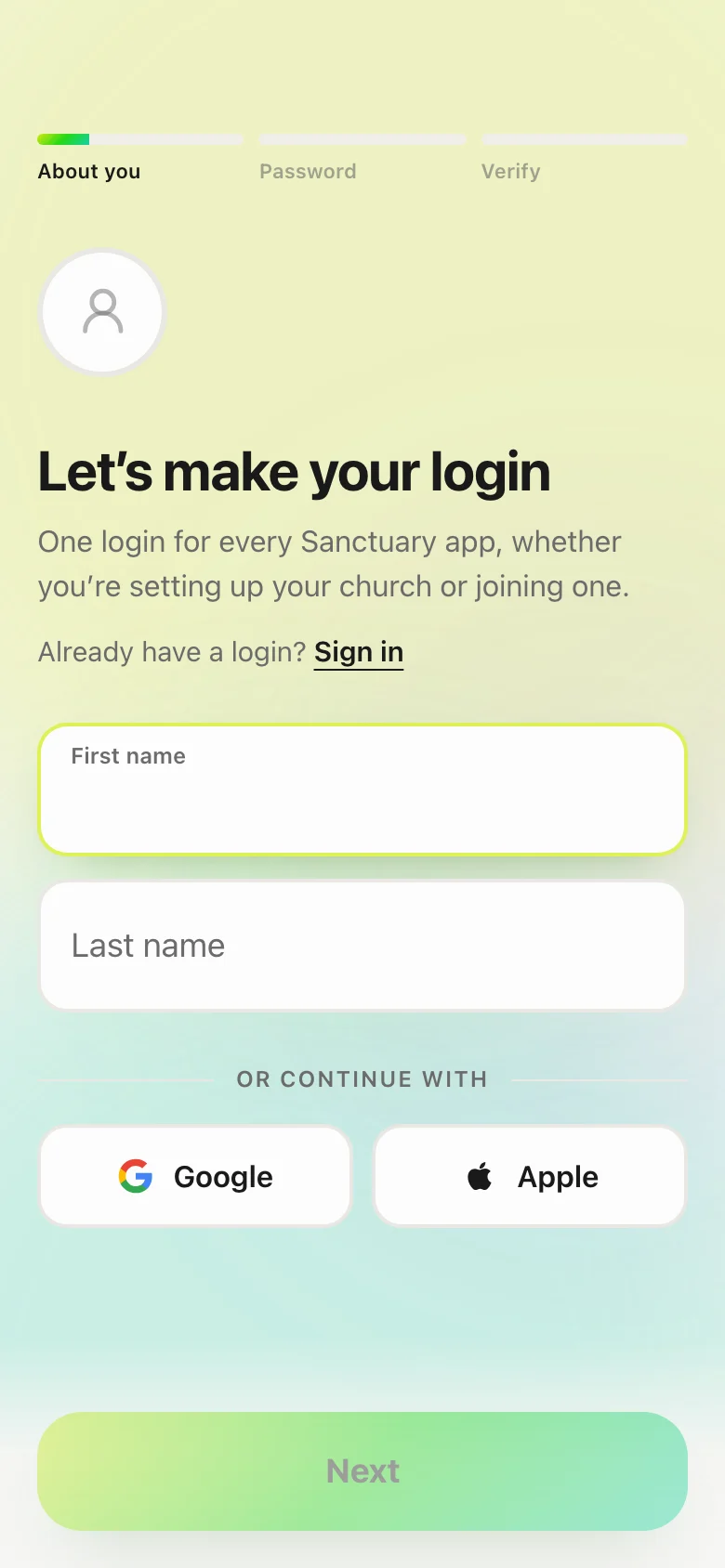
Email, or Google / Apple
Continue with Google or Apple, or answer one question per screen: your name, your email, your birthday, then a password of at least 8 characters. Sanctuary is for people 13 and older; your church’s leaders can see your birthday and nobody else can.
Verify your email
If you used email, we send a 6-digit code. Type it in and it checks itself. If it does not arrive within a minute, check spam, then tap Send a new code — a new code replaces the old one.
Your phone number (optional)
Next, Sanctuary asks for a mobile number so your church can text you — a reminder when you are scheduled, or news that cannot wait. Skip it if you like; you can add it later from your profile.
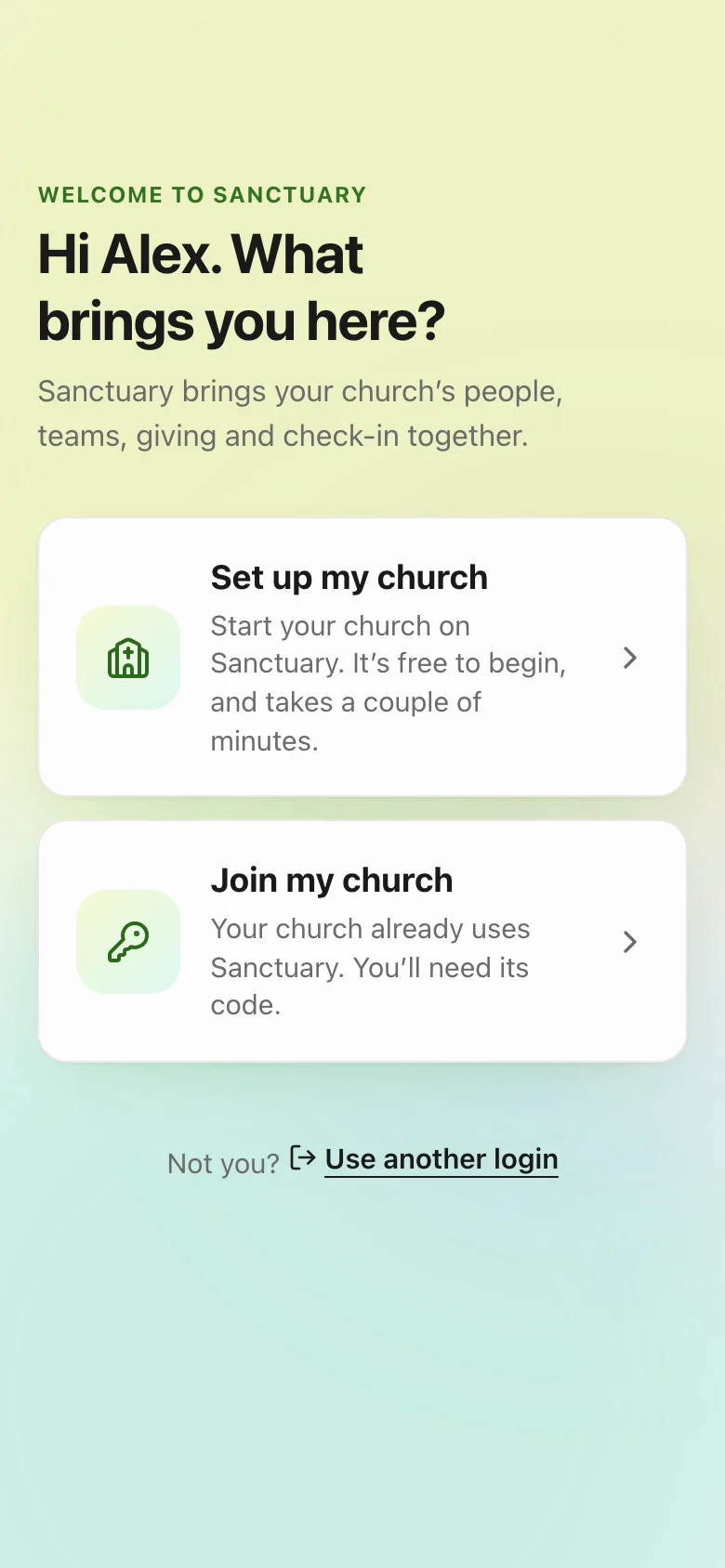
You are not in a church yet
After you verify, Sanctuary asks you to create a church (website only) or join one with a code. Until you do one of those, you will see the welcome chooser, not the dashboard.
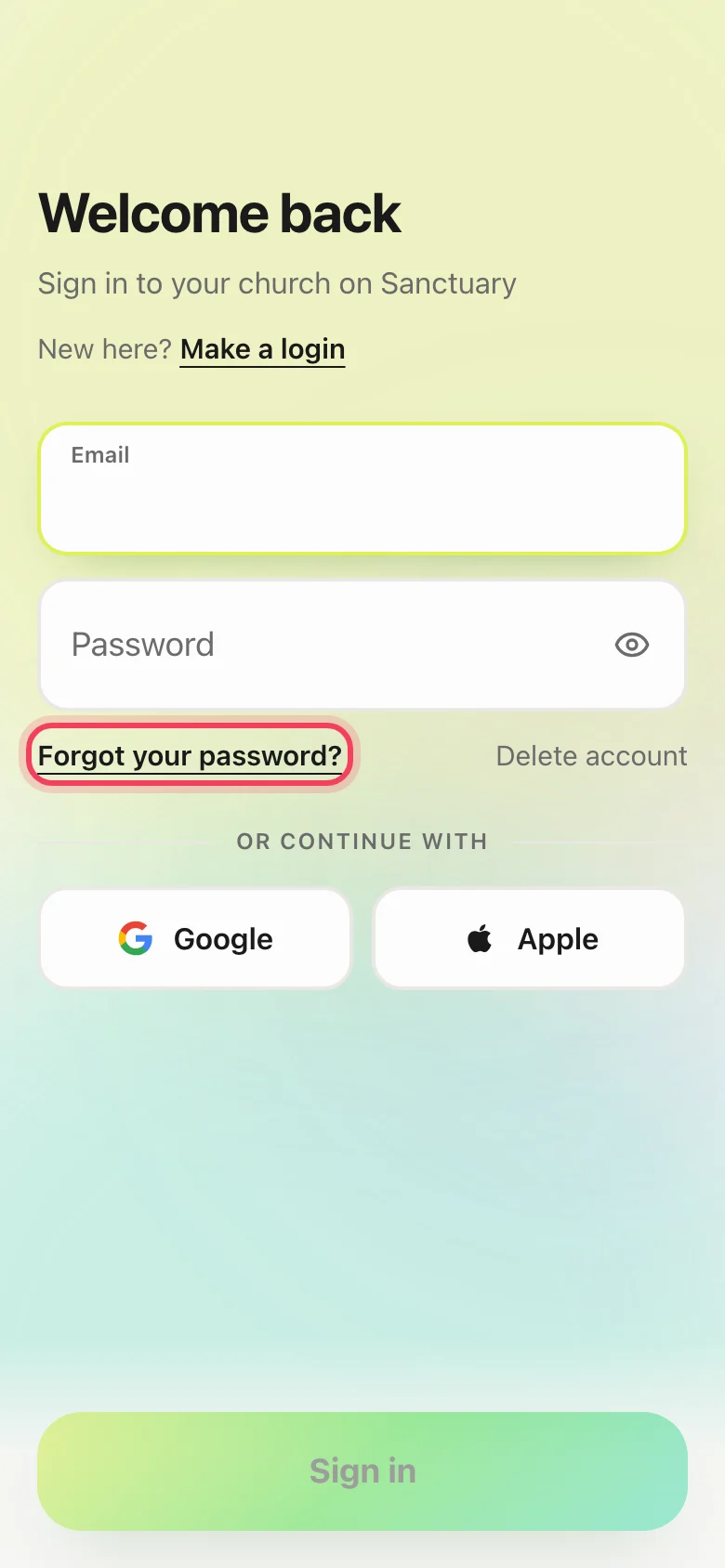
Already have an account?
Use Sign in instead. Forgot your password? Use Forgot your password? on the sign-in screen. We will email a reset link — we never show anyone your password, including support.