Create or join a church
Found a church on the web, or join an existing one with a code or invite.
4 min read · 6 steps
Setting up is website-only
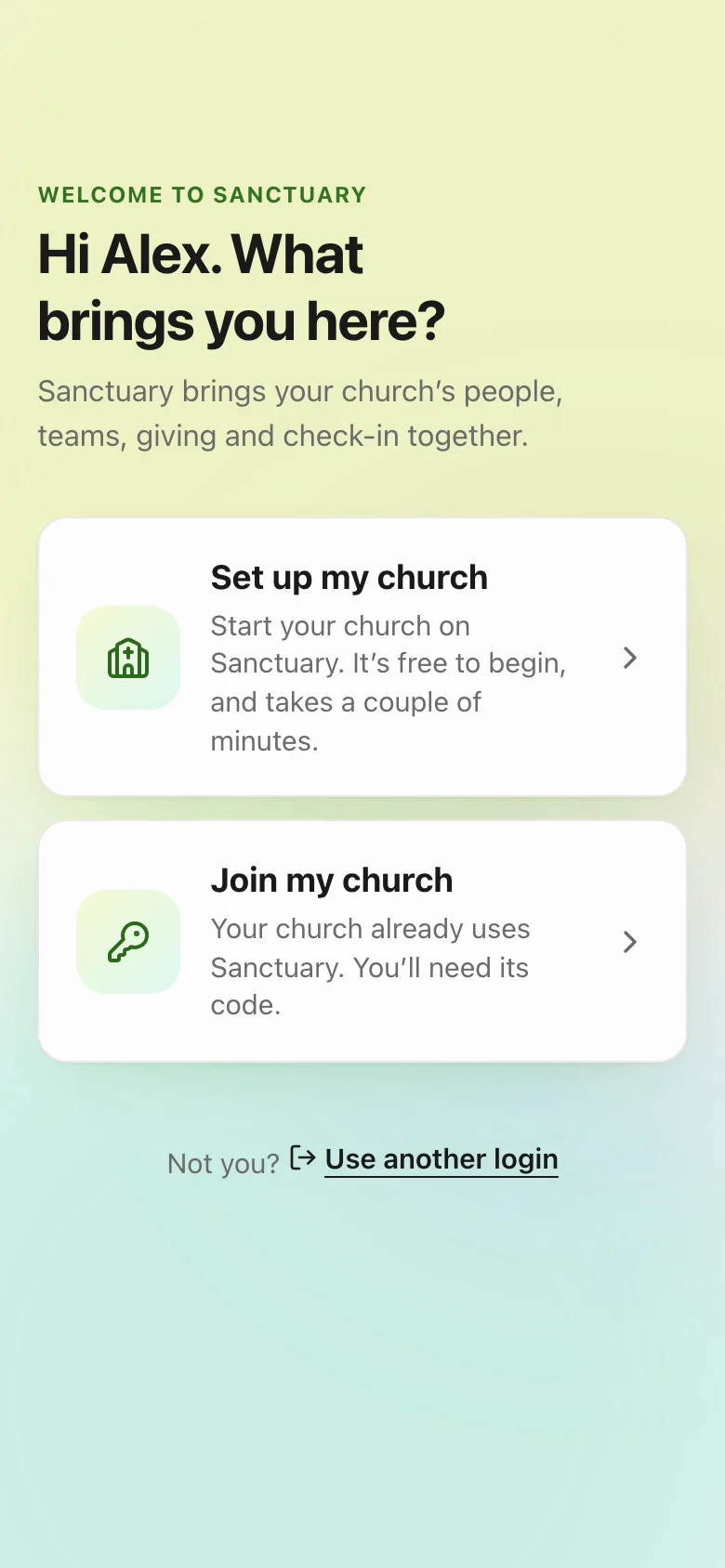
On onesanctuary.app, after you sign in, choose Set up my church. Sanctuary asks one thing per screen: the church’s name, its logo (optional), where it meets, and which apps to start with. Core is always included; Serve and Give are switches you can change later. A last screen, Everything look right?, lets you change any answer before the church is made. Every new church gets 30 days of everything, no card needed. After that Core stays free, and Serve and Give come with a plan, chosen in Account settings → Plan & billing.
Have a trial code?
If Sanctuary gave you a trial code, enter it on the trial code screen. Sanctuary checks it and tells you what it includes before your church is made, then applies it the moment the church exists. No code? Choose I don’t have one.
Copy the church code
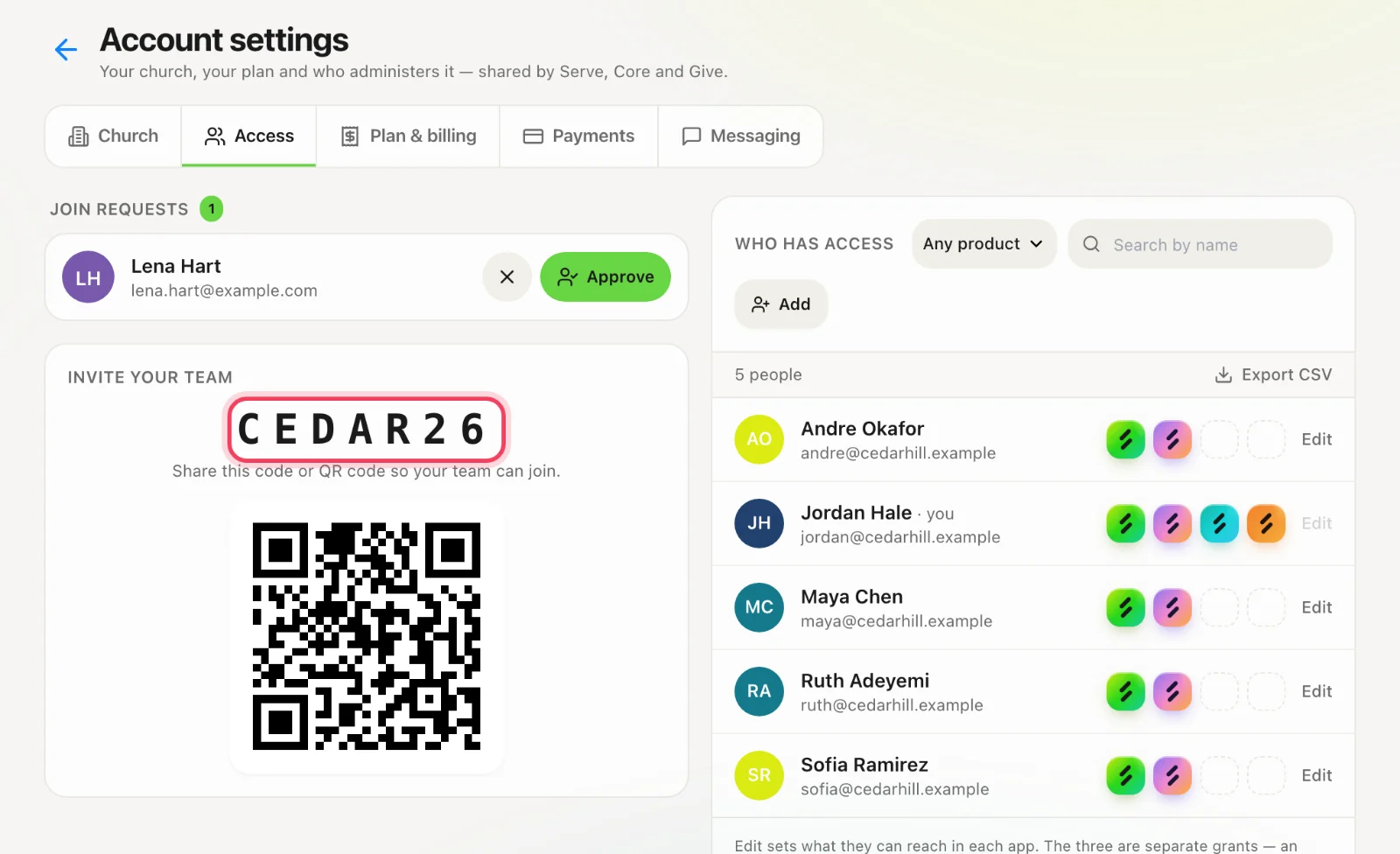
When the church is ready you will see a 6-character Church Code and a QR code, with buttons to copy or share them. That is how your team joins. You can always find it again in Account settings → Access. The welcome screen then lists the first few things to set up.
Join with a code
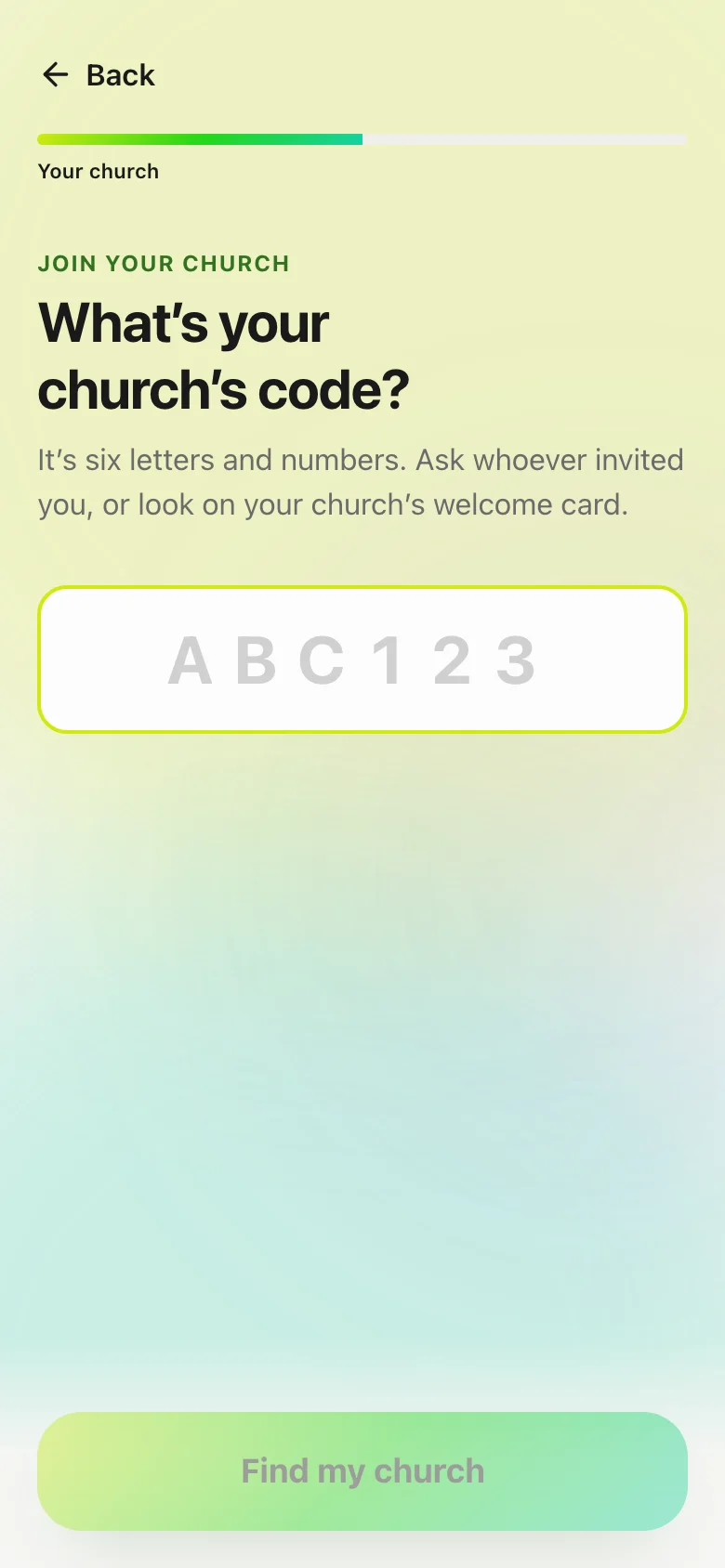
Choose Join my church and type the code (letters are not case-sensitive). Sanctuary shows you the church so you can check it is the right one. If it has more than one campus, pick yours. A code join waits until a leader lets you in — you will see Request sent, with a Check again button.
Join from an invitation
If an admin invited you, the email has a link like /join?code=XXXXXX. Sign in (or create an account) with the same email the invite was sent to. You skip the approval queue and land in the church as a team member.
Wrong church, or still waiting
If you joined the wrong church, sign out and join the right one after an admin removes the pending request — or ask them to decline it. If nobody approves you, there may be no primary administrator; contact support@onesanctuary.app with the church name and code.