Label printers that work with Check-Ins
Which printers and labels work, what each needs installed, and what to do when a label will not print.
6 min read · 9 steps
Proven on real hardware
Dymo LabelWriter 450 and 450 Turbo, connected by USB to a Mac running DYMO Connect, with Dymo 99014 (54 × 101 mm) labels. This is the setup we have printed real labels on.
Every printer Planning Center supports, from a Mac or PC
Built and being confirmed on real hardware. Dymo LabelWriter 450, 550, 550 Turbo, 4XL, 5XL and the LabelWriter Wireless, by USB, through DYMO Connect. Every Zebra on their list — GX420d, GK420d, GK420t, ZD420, ZD421, ZD620, ZD621, ZT420, ZQ320, ZQ510, ZQ620 and ZQ630 — by USB or Wi-Fi, through Zebra Browser Print. Every Brother QL — 800, 810W, 820NWB and 1110NWB — by USB, Wi-Fi, or Bluetooth on Windows, through the computer’s own printing. And any other label printer the computer can add, the same way. If you have one of these, tell us and we will set it up with you.
Wireless and Bluetooth from a computer
A Brother or other printer the computer reaches over Wi-Fi or Bluetooth prints like one on a cable: add it in the computer’s printer settings first. Brother’s Mac driver has no Bluetooth, so on a Mac use Wi-Fi or the cable; on Windows, pair it in Bluetooth settings and the driver installer offers a Bluetooth connection. Zebra Browser Print finds Zebras on USB and on the network, not over Bluetooth. Dymo printers are USB only, including the LabelWriter Wireless. A cable is always the most reliable.
Not yet
Printing from an iPad, iPhone or Android device needs a Sanctuary app for it that is still in development — so the Citizen CMP-30II, and Bluetooth to a Zebra, wait for that. Use a Mac or Windows computer at the printer station for now; iPads and phones check families in and their labels print at that station.
What to install
Dymo: install DYMO Connect and keep it open. Zebra: install Zebra Browser Print. Anything else: install the printer’s own driver and make it the computer’s default printer. When you set up a station, Sanctuary looks for printers on that computer and suggests the right way to print.
Labels
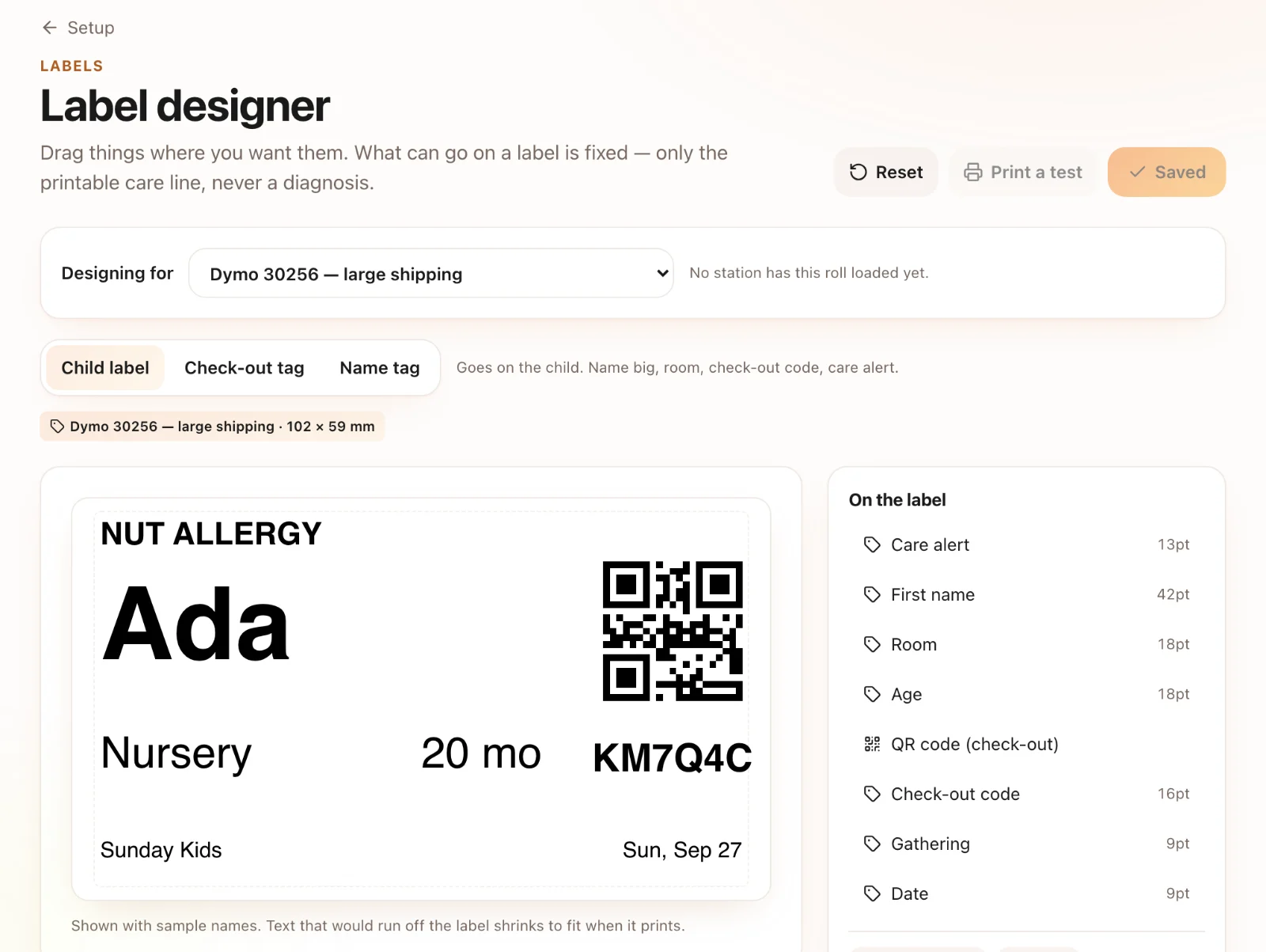
Dymo 550 printers accept only Dymo-brand rolls with a chip in the core — third-party rolls will not print. In DYMO Connect’s paper list, US names are used: 99014 appears as 30323 (shipping). For the computer’s own printing, set the paper size to match the roll that is loaded.
Printing with no pop-up
Through the computer’s own printing, browsers show a print dialog for each label. To print straight away, open the station in Chrome or Microsoft Edge started with kiosk printing turned on, or in Firefox with silent printing turned on — station setup shows the exact steps for the browser you are using. A Chromebook cannot be set up this way and asks for each label.
Prints from DYMO Connect but not from Sanctuary
DYMO Connect has a small helper that Sanctuary talks to, and it can hang while the app still looks fine. Quit DYMO Connect completely and open it again, then print a test label from the station. The station checks its printer before every label and tells the desk if something is wrong.
Nothing gets lost
If a station’s printer cannot print, its waiting labels move to your primary station so a child is never left without one. The desk shows which printer has a problem and why.